
How to Buy a Course on BioCode?

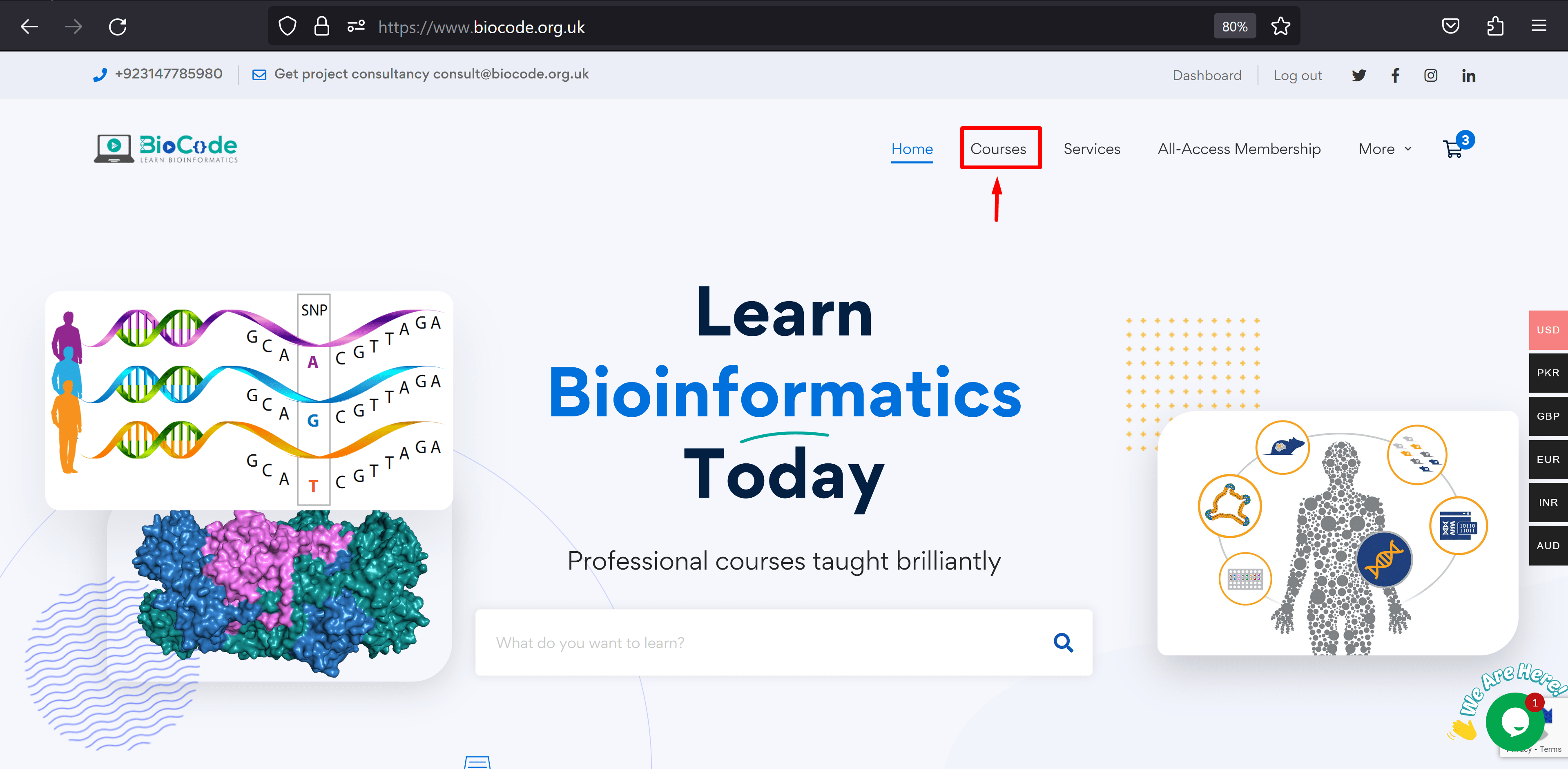
1.   Go to our Home Page. On the Home page, you will see a “Courses” button as shown in the figure below, click on it to browse all the courses that BioCode is offering.
BioCode homepage showing the Learn Bioinformatics Today banner and search bar, with the Courses menu item highlighted
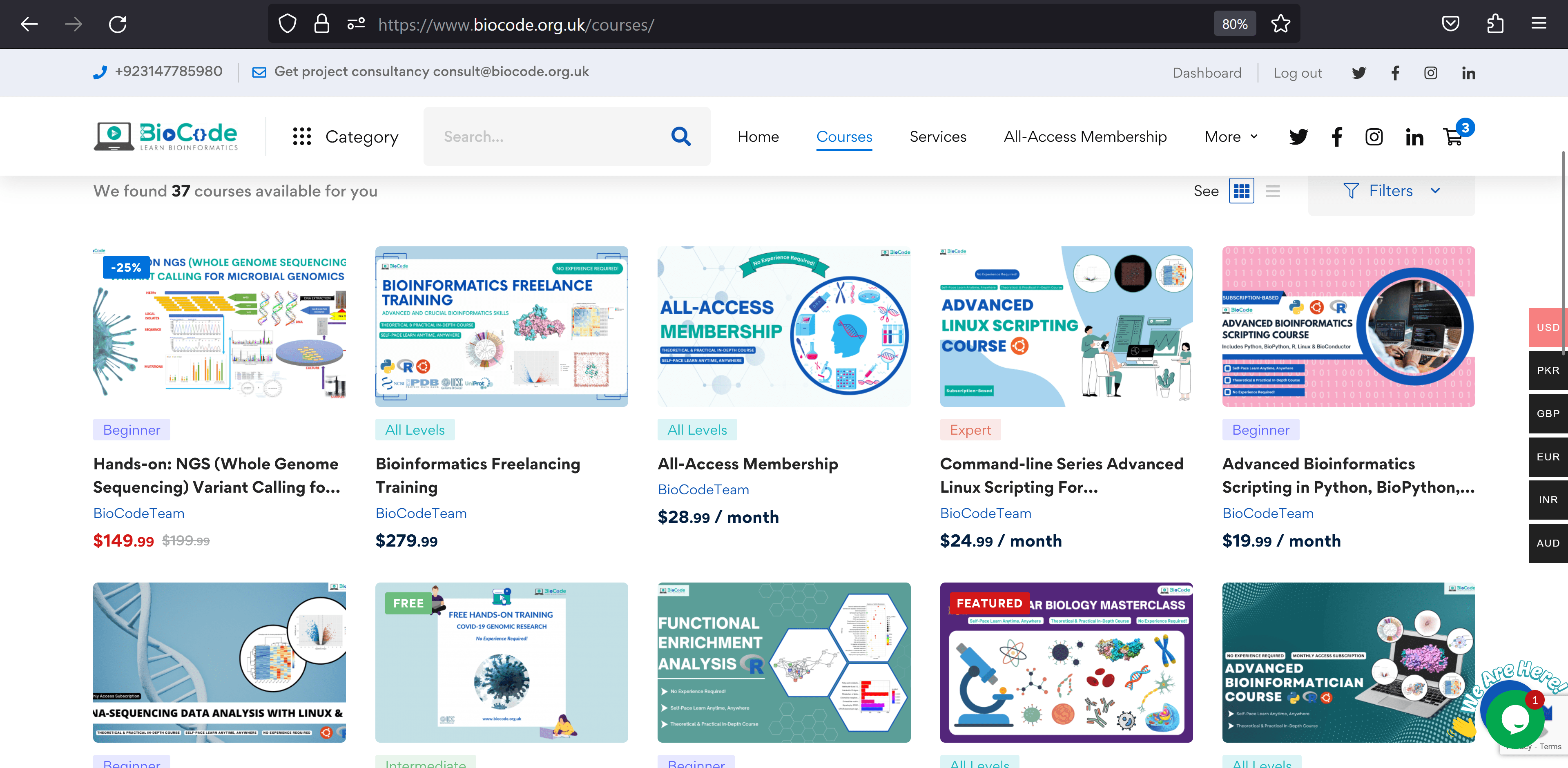
2.   Select the course you are looking to purchase from the courses list. If you click on a specific course you can see a detailed description of what the course includes along with course contents and learning objectives.
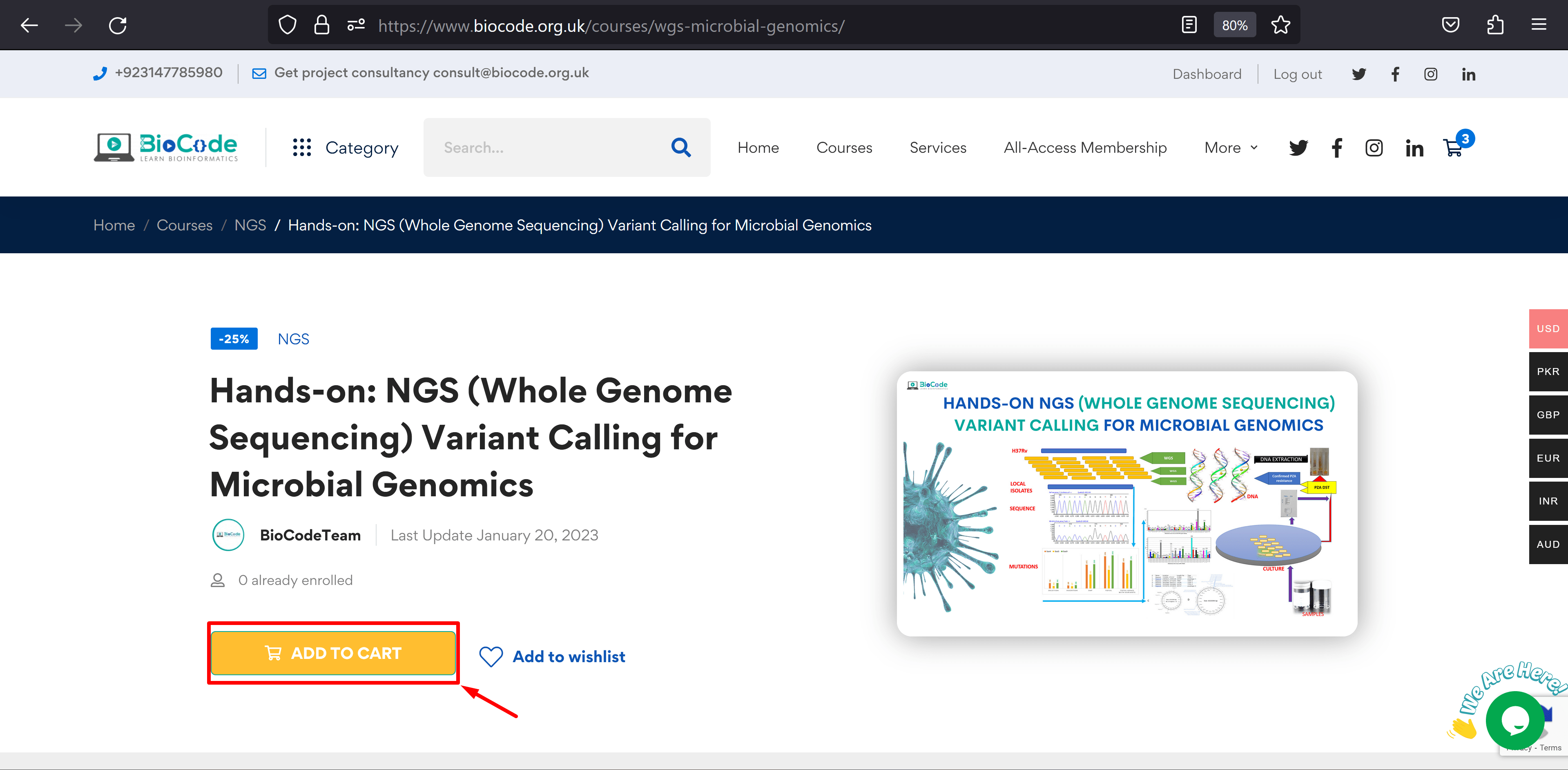
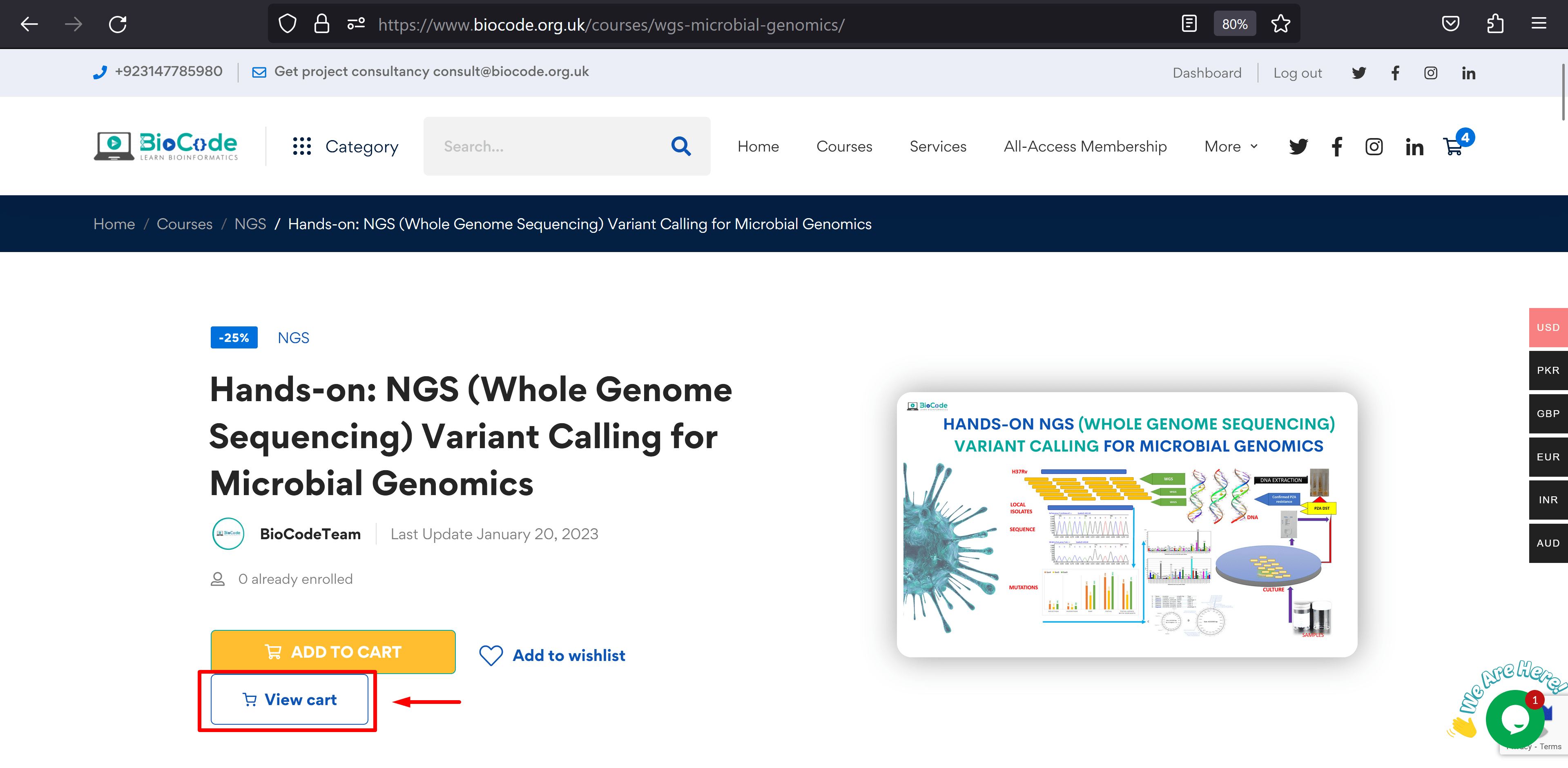
3.  After clicking on the course that you would like to purchase you will be directed to the course page. On the course page, you will see a button “Add to Cart” as shown in the figure below, click on it, and then another button will appear saying “View Cart” as shown. Click on the “View Cart” button so that you can get directed to the checkout page.
BioCode course page for the NGS variant calling course with the Add to cart button highlighted
BioCode course page for Hands-on NGS Whole Genome Sequencing Variant Calling for Microbial Genomics, with the Add to cart and View cart buttons highlighted
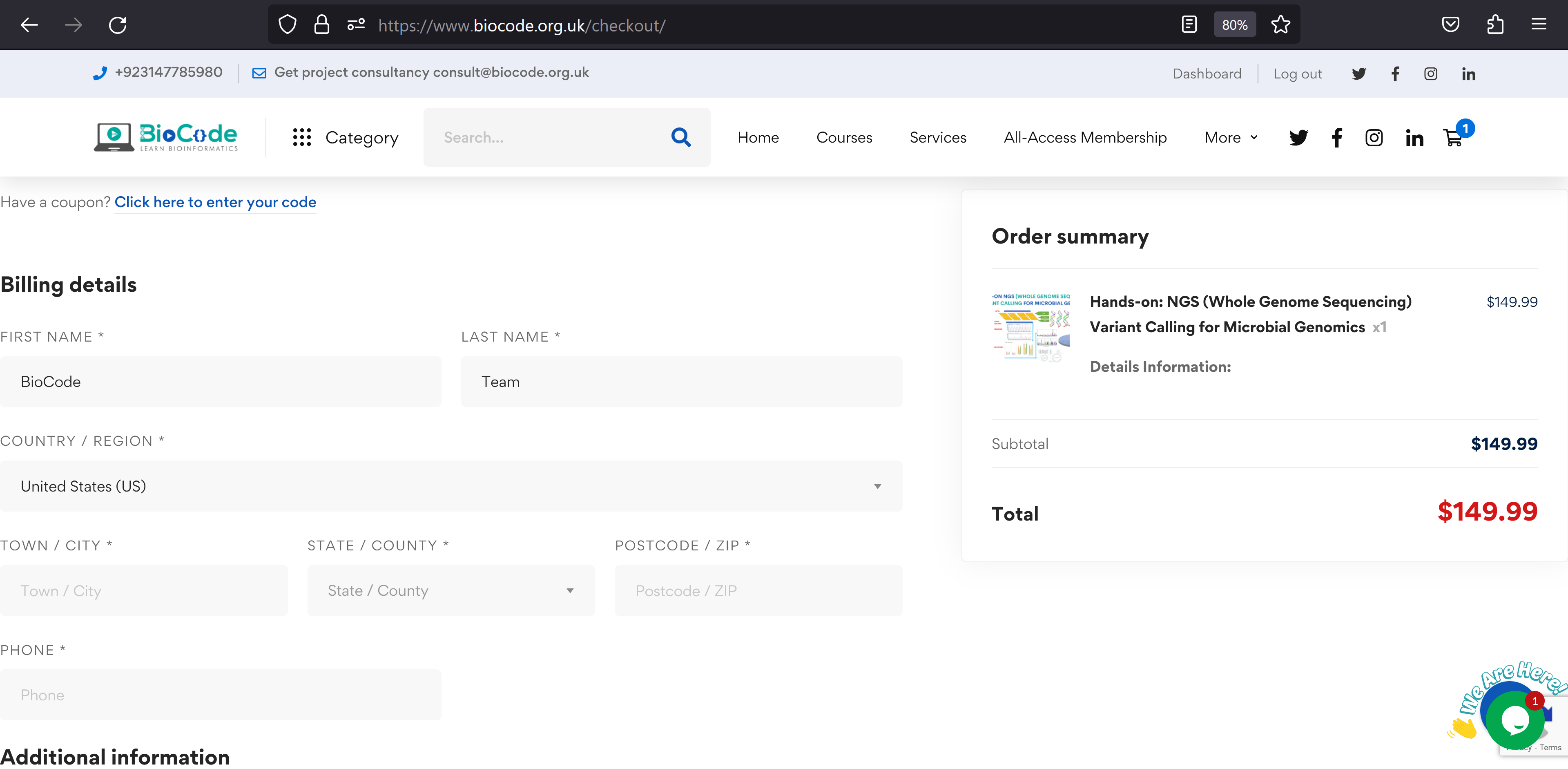
4. Here on the checkout page, you will enter all the essential information that is necessary to complete the course purchase for instance first name, contact information, billing details, etc.
BioCode checkout page showing billing details on the left and an order summary listing the NGS variant calling course on the right
[event-add-cart-section event="36138"]
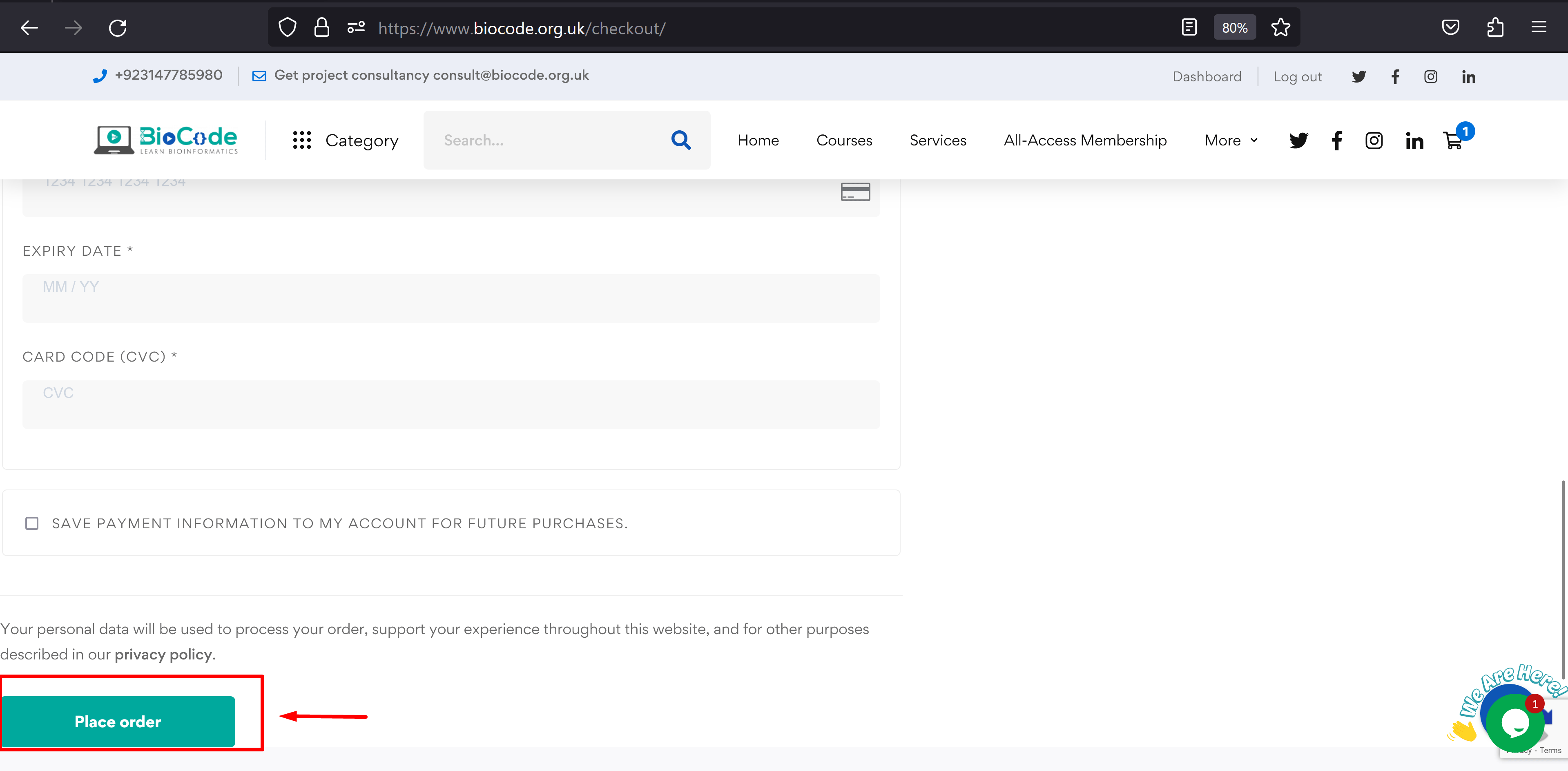
5. After filling out all the information boxes on the checkout page, click on the “Place Order” button down below as shown in the figure below. On clicking the place order button your purchase will be completed.
BioCode checkout page showing the card payment fields and the Place order button highlighted
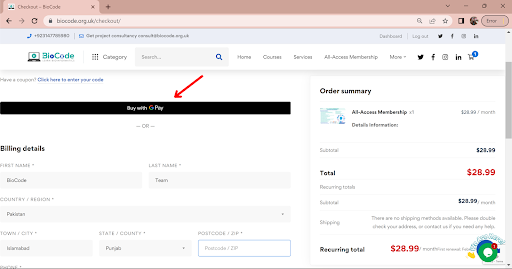
6. You also have the option to pay for the selected course/courses with Google Pay. You will just click on the given Google Pay link on Google Chrome as shown in the figure below and enter the necessary details that are needed in order to complete the transaction.
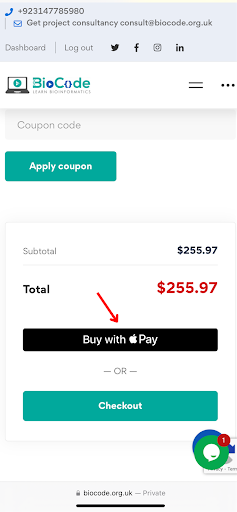
7. You can also complete your transaction by paying through Apple Pay. This option will be displayed along with the check out option as shown in the figure below. Just open this link on safari and enter the necessary details that are needed in order to complete the transaction.

2 Comments.

Leave a Reply

Your email address will not be published. Required fields are marked *
